Features How It Works Blog Download FAQ Try Free
Mac & Windows · For Music Theory Learners & Teachers

Turn the Chords You Play into Notation & Symbols Instantly

The must-have tool for anyone learning music theory.

Connect your MIDI keyboard; the notes you play light up on the piano below, appear on the grand staff above, and the chord symbol and functional analysis show live. No keyboard? Play the on-screen piano.

Try Free How It Works?
Free plan Processed on your device Apple-signed Real grand piano sound
michord
Michord screen: a Cmaj7 chord on the grand staff with its chord symbol and functional analysis
Michord's actual screen — the notes you play become notation, chords and analysis.

What Michord Actually Does

The images below are real screenshots from the app — not drawings or mockups.
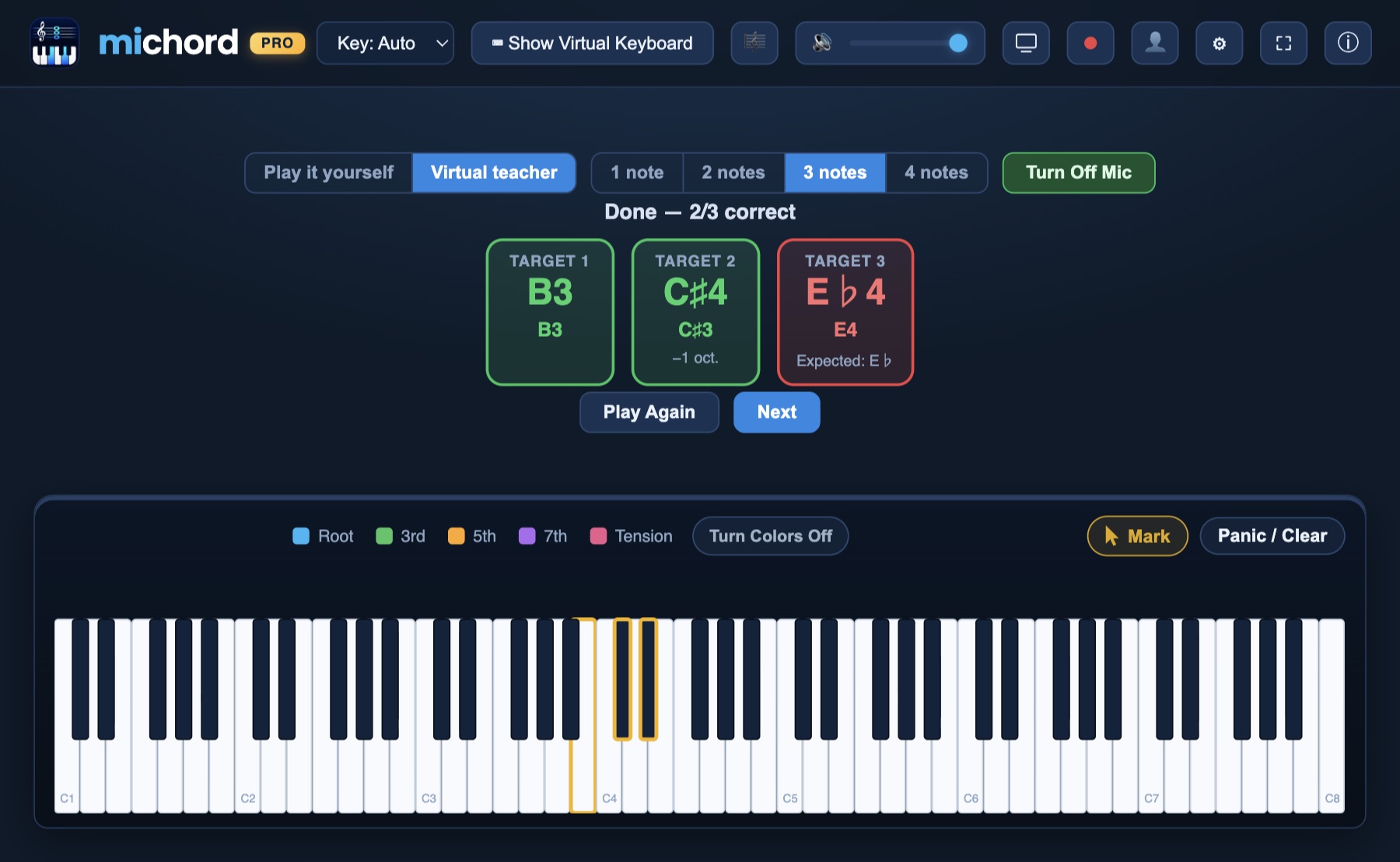
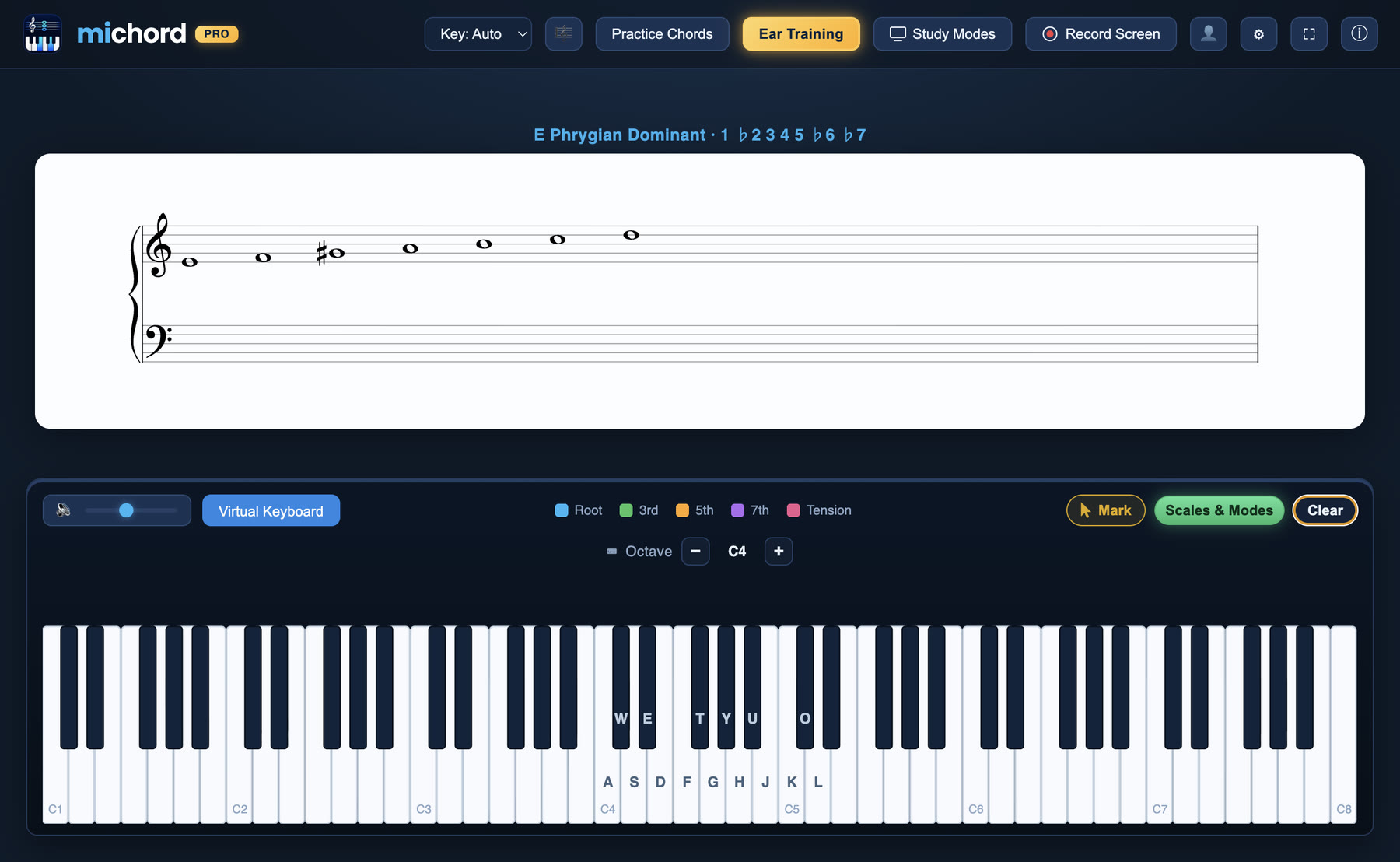
Michord ear training screen: three target notes, two green (correct), one red (wrong); the note the student sang is shown under each card
Ear Training NewPreparing for music school is now easy with your Virtual Teacher. Michord plays a note, you sing it back, and the microphone measures which note you sang. Correct turns the card green, wrong turns it red and shows what you sang. Sing in your own range — an octave lower still counts as correct, and the difference is noted on the card.
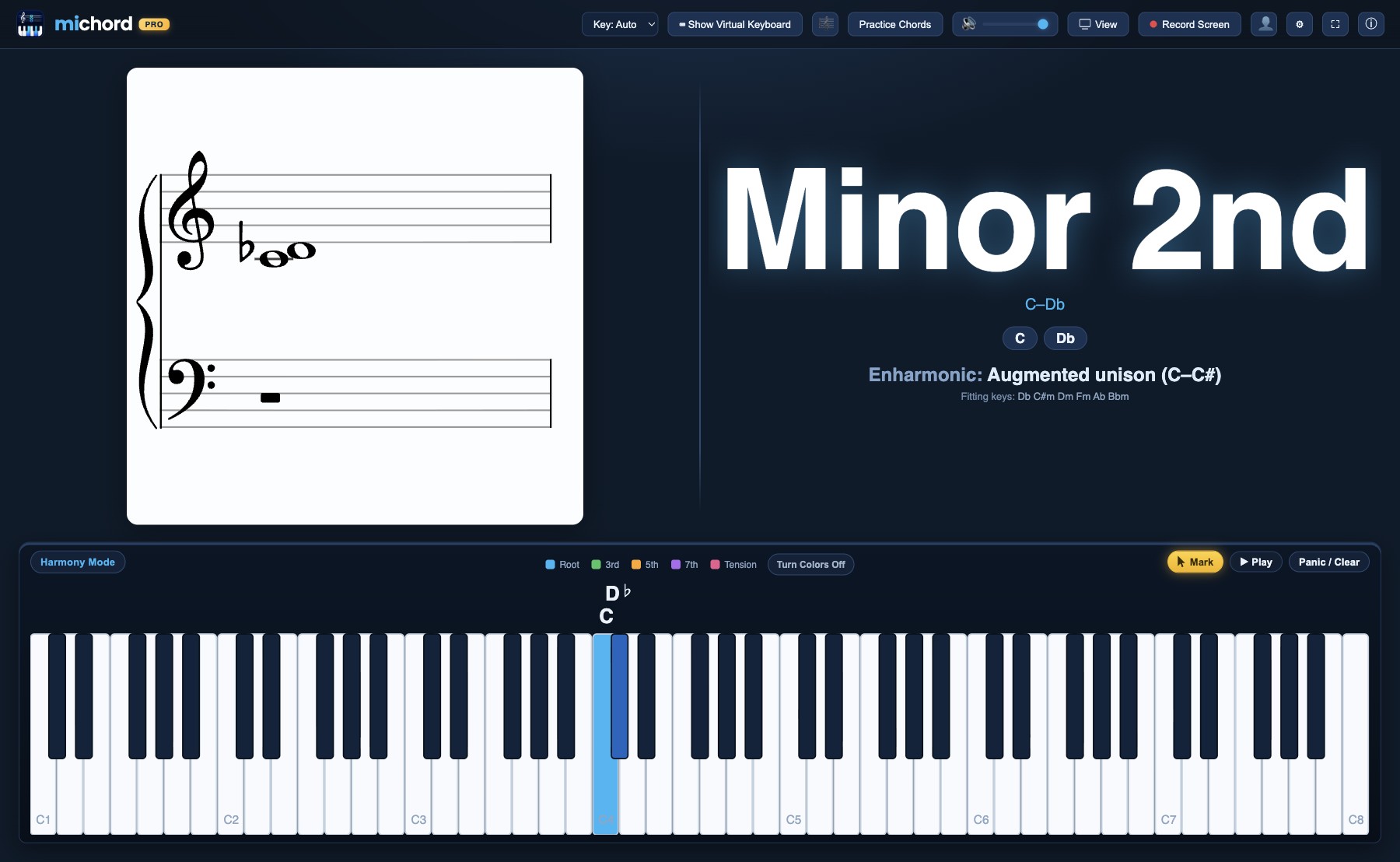
Michord screen: C and C sharp played, the interval named Minor 2nd with Enharmonic: Augmented unison shown below
Intervals and enharmonicsPlay two notes: Michord names the interval from how the notes are spelled, not from the number of semitones. C and the black key above it make a Minor 2nd (C–D♭); the same sounds can be written as an Augmented unison (C–C♯), and that reading appears right underneath. Staff, keyboard and chord panel always agree on the spelling.
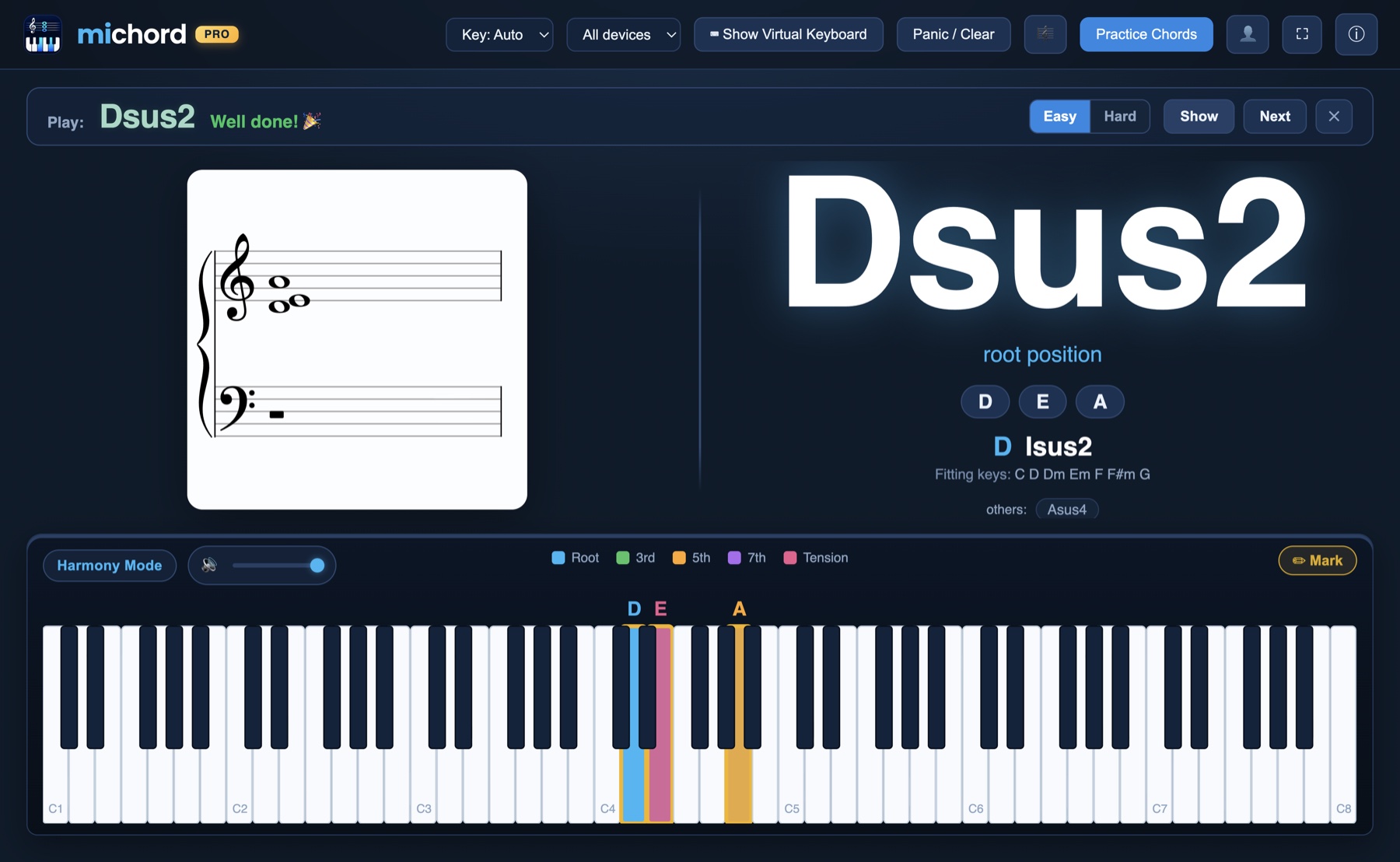
Michord chord training: a target chord and the feedback shown when you play it right
Chord trainingThe app names a chord and you play it. You get instant feedback when it is right, you can switch between easy and hard, and you can ask for a hint when you are stuck.
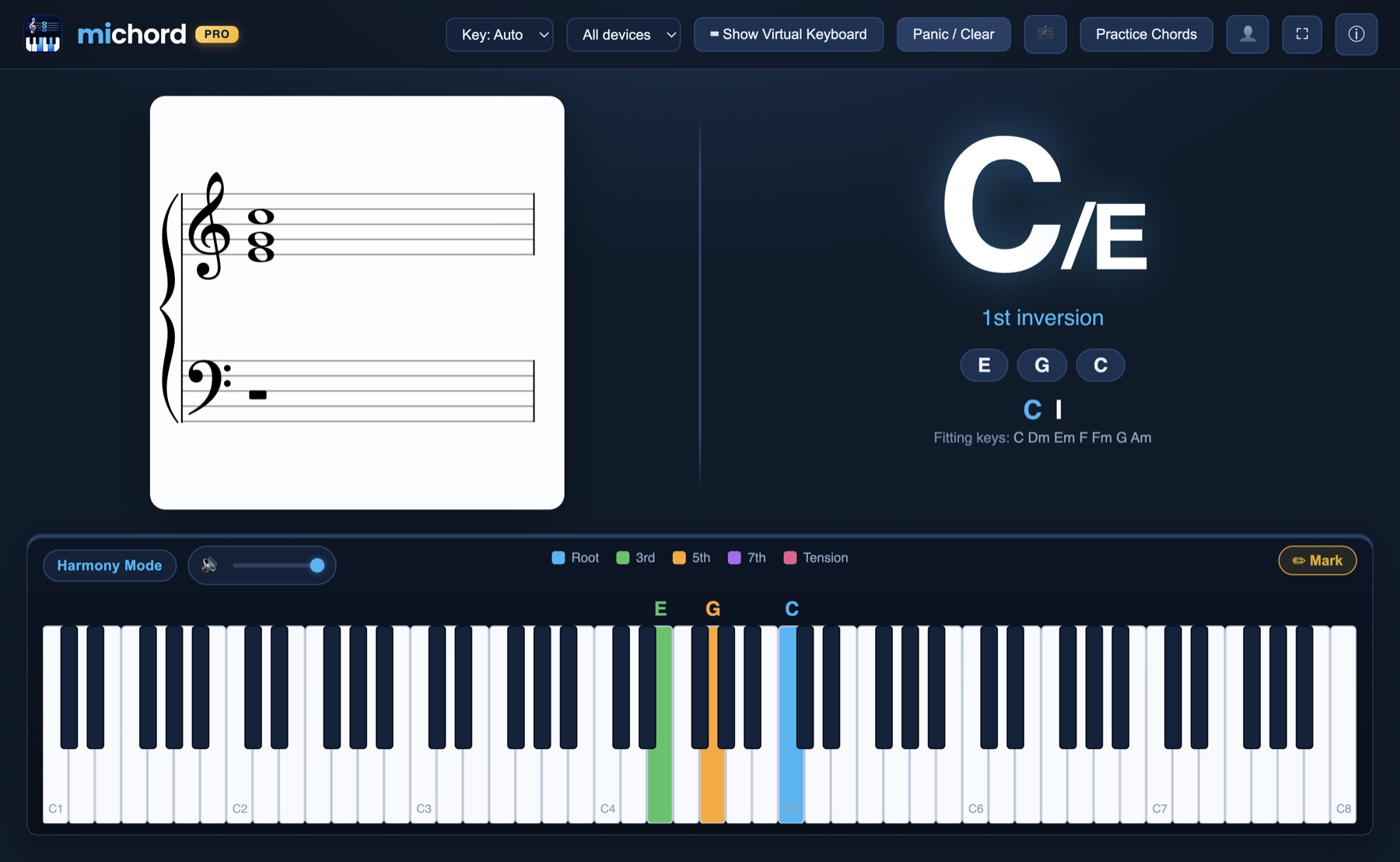
Michord screen: a C/E chord recognised as a first inversion
Inversions and bass notesPlay the same notes in a different order: Michord reads it as C/E, tells you it is a first inversion, and writes it correctly on the staff.
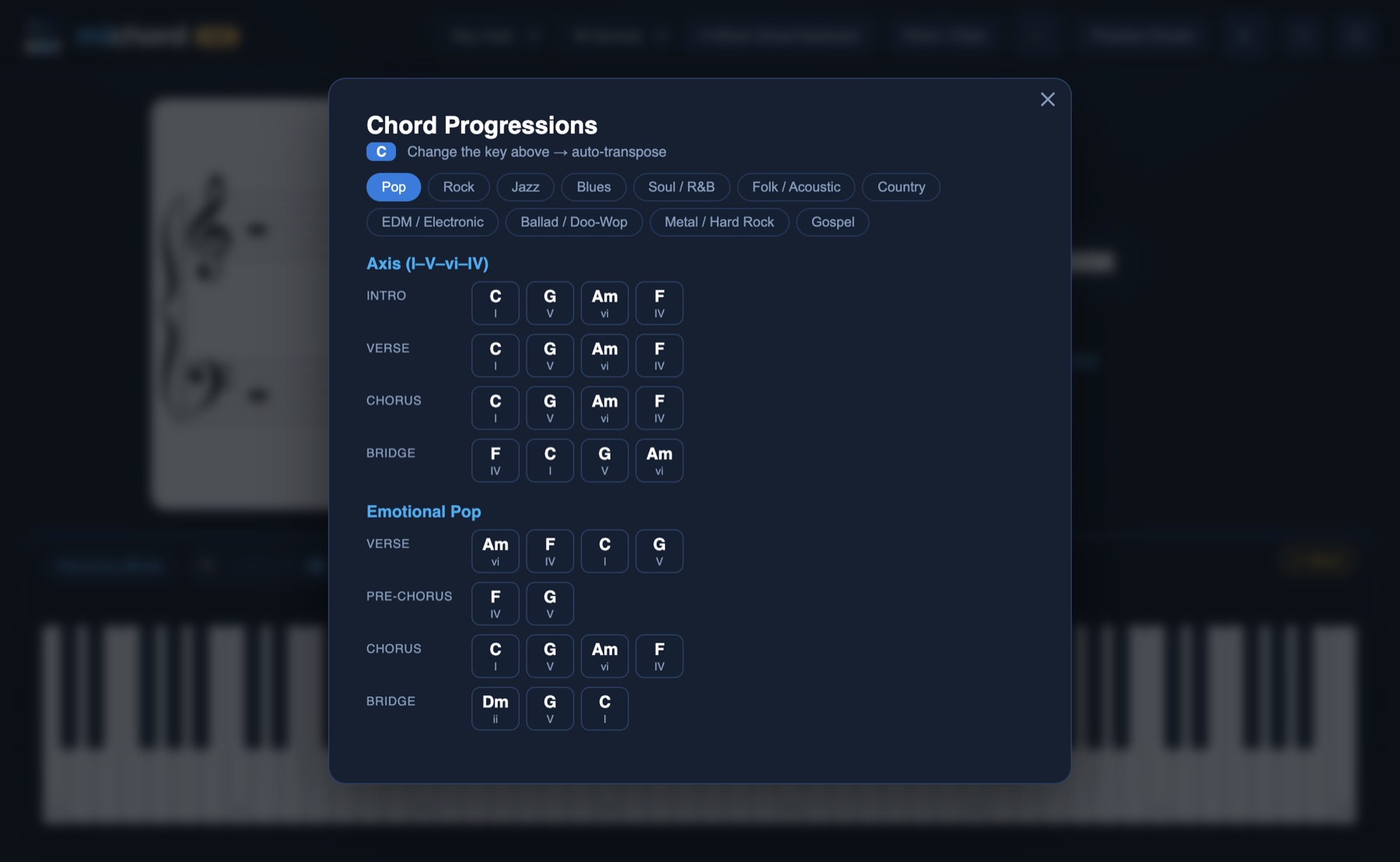
Michord chord progression library: ready-made sequences by genre
Chord progressions by genrePop, rock, jazz, blues and more; ready-made sequences for the intro, verse, chorus and bridge, transposed automatically into the key you choose.
The “Record Screen” menu — resolution options
  • Screen Resolution (Best Result)the window's own size~48 MB/min
  • 720p1280 × 720~4 MB/min
  • 1080p1920 × 1080~4 MB/min
  • 2K2560 × 1440~6 MB/min
  • 4K3840 × 2160~11 MB/min
Screen recording with audioPress Record Screen in the toolbar; the menu opens right under the button and each option shows roughly how many MB a minute will take. Michord records only its own window and its own sound — no screen picker appears and no other app's audio gets mixed in. The output is MP4 straight away (H.264 + AAC, 30 fps); there is no conversion step and no external tool. While recording, the button shows the selected resolution and the elapsed time. Capture a lesson, a drill or an analysis exactly as it happened and share it.

Get Started in Three Steps

Download & Sign In

Download the Mac or Windows version and install. Sign in with your email — start free, no credit card.

Connect Your Keyboard

Plug in your USB or Bluetooth MIDI keyboard. No keyboard? Play the on-screen piano with your mouse.

Play & See

Watch the notes you play turn into notation, chords and analysis — in class, in the practice room, in the studio.

Try It Free

For Apple Silicon Mac and Windows. Sign in with your email — no credit card.

macOS

Apple Silicon (M1/M2/M3…) · .dmg
Download for Mac

Runs on all Apple Silicon (M-series) chips. Apple-notarized, so it installs directly.

Windows

Windows 10 and later · .exe
Download for Windows

If you see "Windows protected your PC" on first launch: More info → Run anyway.

PRO

Michord Pro

Everything below unlocks with a monthly or yearly plan:

  • Live grand-staff notation
  • Chord symbols & inversions (incl. slash/bass)
  • Functional analysis — Roman numerals & key detection
  • Secondary dominants & borrowed chords
  • Cadence detection & modulation alerts
  • Harmony Mode — voice leading & parallel 5ths/8ves check
  • Chord progression library by genre
  • Chord-role colors on the piano, with legend
  • Screen recording with audio — MP4, 1080p / 2K / 4K
  • Preparing for music school is now easy with your Virtual Teacher

Free plan includes: MIDI keyboard, on-screen piano and computer-keyboard playing · real grand piano sound · note names on the keys you press.

MONTHLY $2.99/mo billed monthly
BEST VALUE · −36% YEARLY $1.92/mo ×12 · $22.99 total

Start your subscription inside the app, cancel anytime.

Frequently Asked Questions

Do I need a MIDI keyboard?

No. If you have one, you can play live; otherwise click the on-screen piano or play with your computer keyboard (A W S E D F… keys, Z/X for octave) to build chords and see their notation and symbols.

Which chords does it recognize?

From triads to 13ths; sus, add, altered, dim, aug; 1st/2nd/3rd inversions and slash chords, up to 6 notes — with alternate interpretations.

Is it paid? How much?

You can start using it free, no credit card needed. The subscription that unlocks every feature is $2.99/month or $22.99/year. Cancel anytime.

Do I need an internet connection?

Only for sign-in and subscription checks. Note recognition, the chord engine and piano sound run locally on your computer; your music is never sent to the cloud. You can keep using it offline after signing in.

What if macOS says "unidentified developer"?

The app is signed with an Apple Developer ID. If you see a warning on first launch, right-click the app and choose "Open".

Does it work on Windows?

Yes. It runs on Windows 10 and later — use "Download for Windows" above to get it.

What if Windows shows "Windows protected your PC"?

This is a normal SmartScreen notice for apps recently downloaded from the internet — it does not mean the app is harmful. In the dialog, click "More info", then the "Run anyway" button that appears; setup will start. (The notice goes away on its own as the app becomes more widely recognized.)

Do I need permission to record the screen?

Not on Windows — you can record straight away. On a Mac, macOS asks the first time: allow Michord under System Settings → Privacy & Security → Screen Recording, then restart the app. You only need to do this once.

Make Theory Heard and Seen

Connect your MIDI keyboard, play, and see. Michord handles the rest.

Try Free