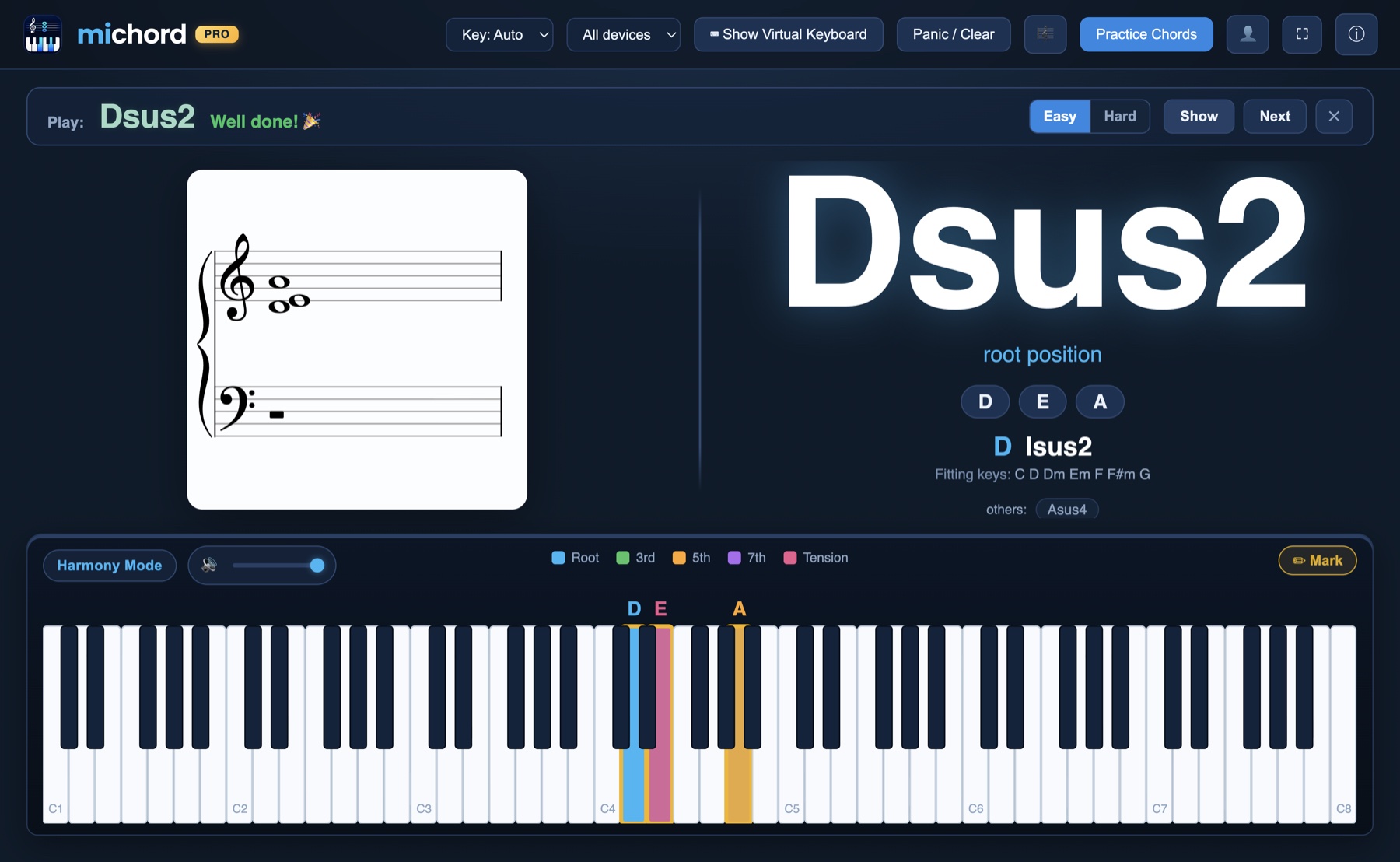
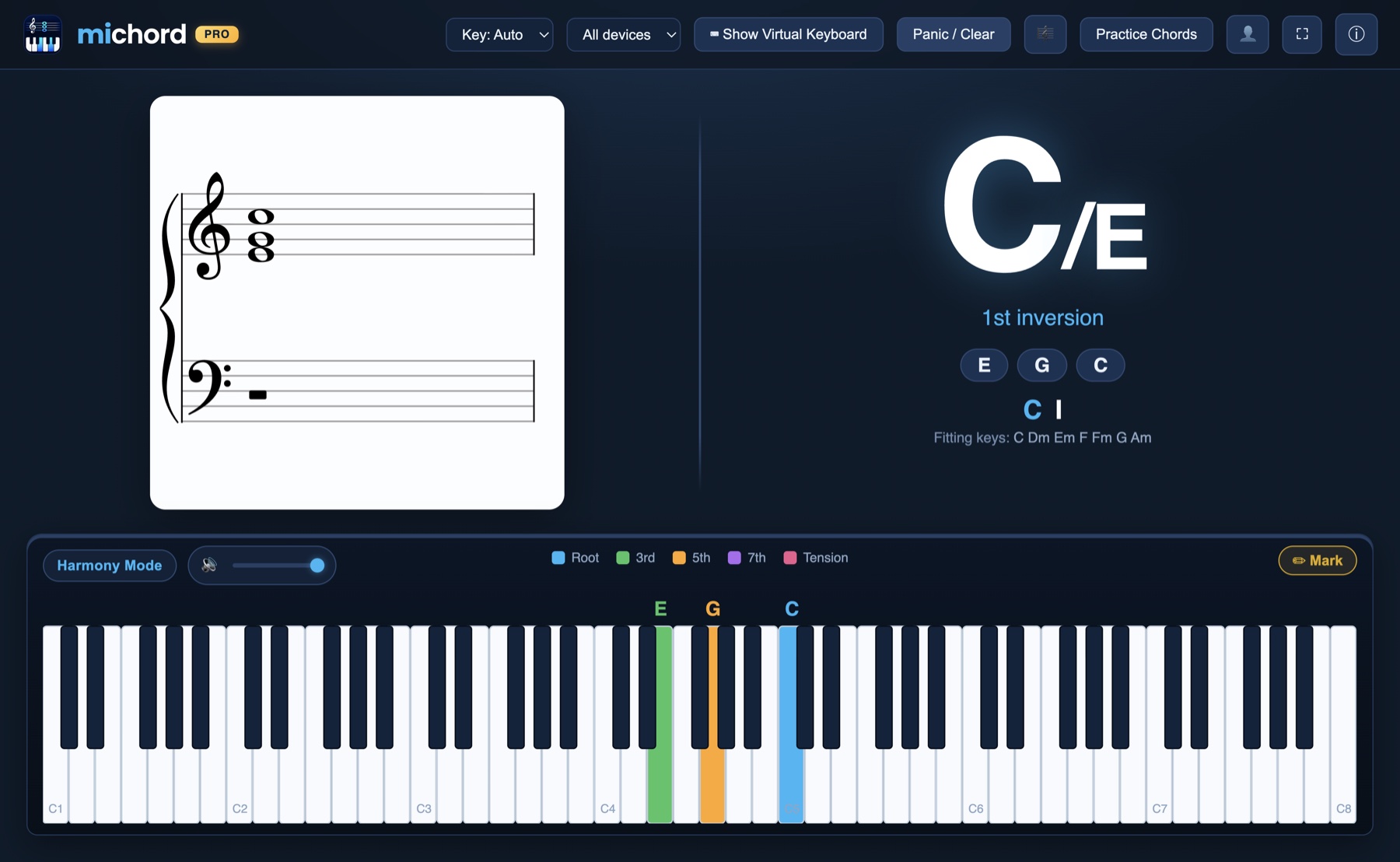
The images below are real screenshots from the app — not drawings or mockups.
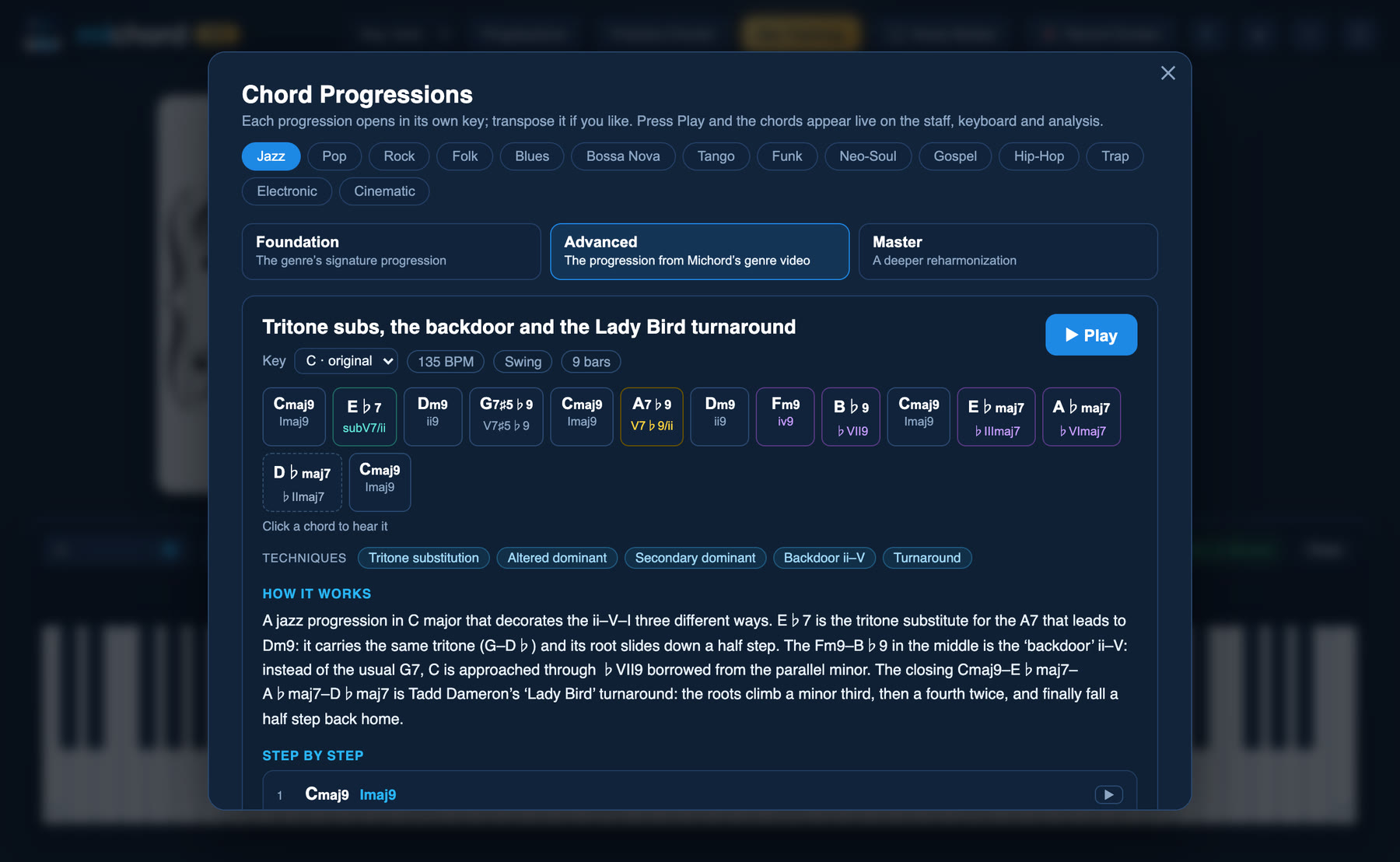
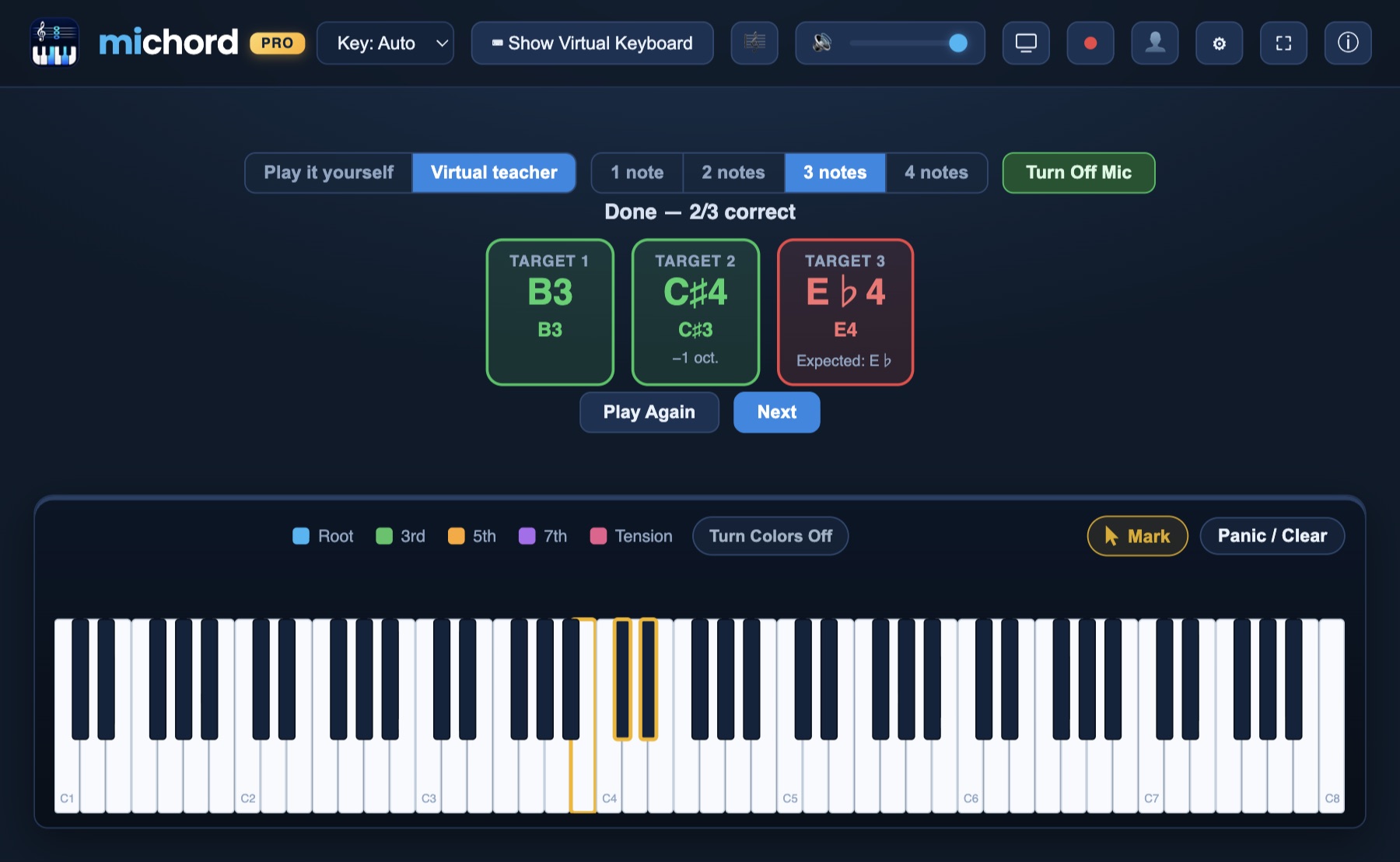
Chord progressions NewPress Progressions in the toolbar: 42 progressions across 14 genres — jazz, pop, rock, folk, blues, bossa nova, tango, funk, neo-soul, gospel, hip-hop, trap, electronic and cinematic — each at Foundation, Advanced and Master level. Every progression opens in its own key, and you can transpose it to any other. Press ▶ Play and it plays at the genre's tempo with its own piano pattern, while the chords appear live on the staff, on the keyboard and in the analysis. Below it you get the idea behind the progression and a step-by-step note on every chord: its role, how the root moves, ii–Vs, guide tones and cadences.Ear Training NewPreparing for music school is now easy with your Virtual Teacher. Michord plays a note, you sing it back, and the microphone measures which note you sang. Correct turns the card green, wrong turns it red and shows what you sang. Sing in your own range — an octave lower still counts as correct, and the difference is noted on the card.
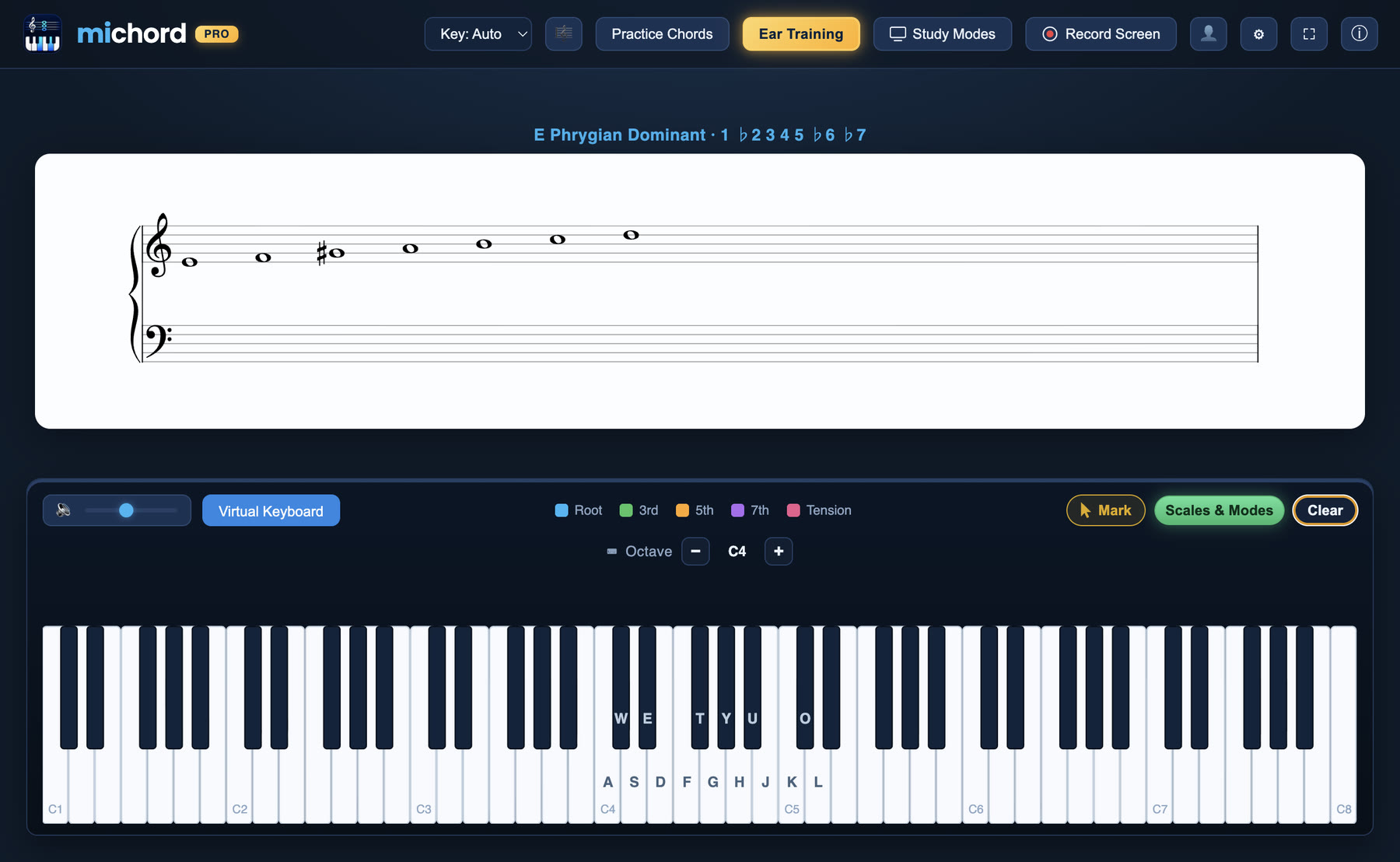
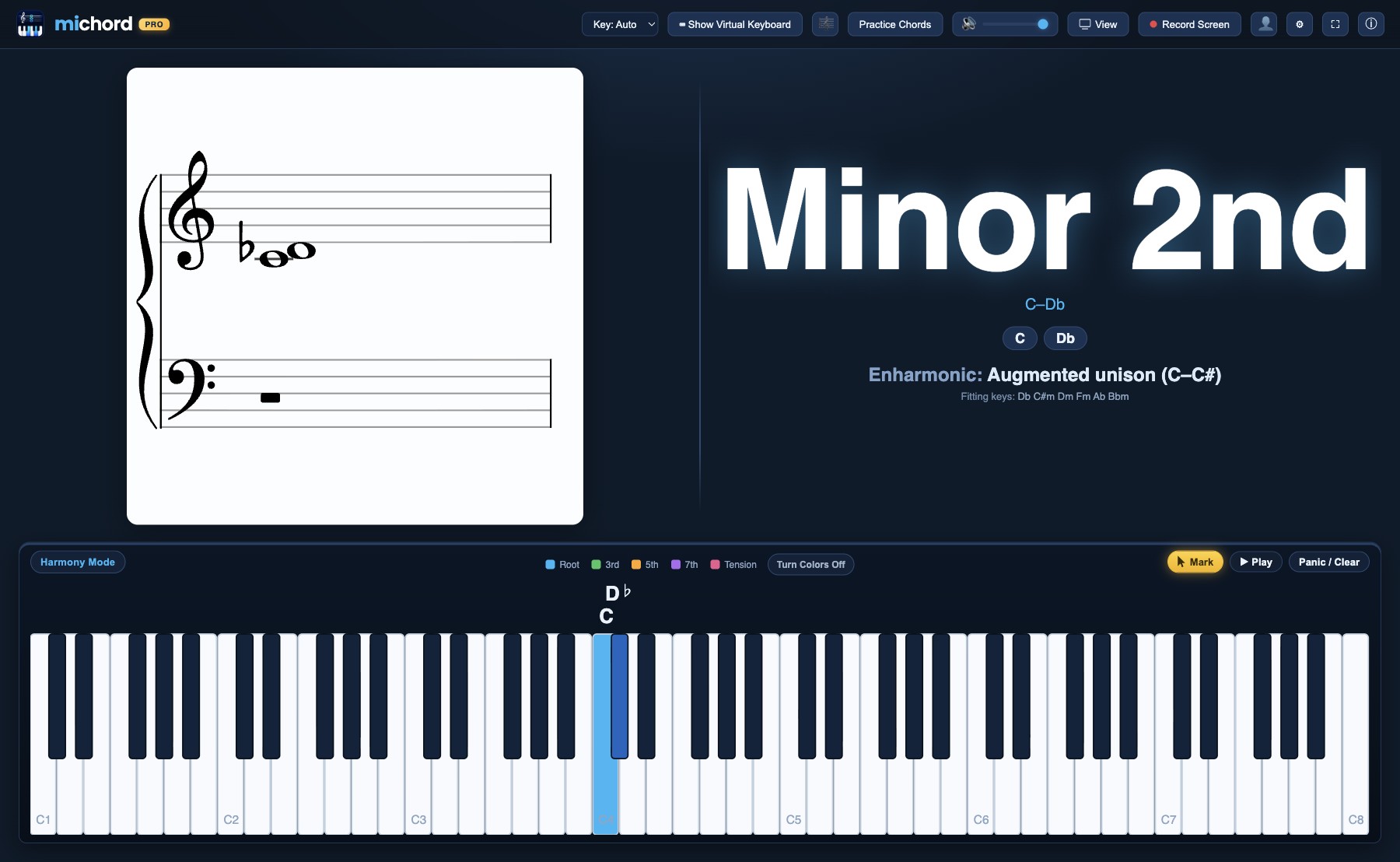
Live lessons on Zoom and live streamsShare the Michord window on Zoom, Google Meet or Teams while you teach: your students see the name, staff and analysis of every chord the moment you play it. In Harmony Mode the whole class follows voice leading and parallel-fifth warnings together. For a YouTube live stream, add the Michord window to your streaming software and play; Performance Mode shows just the keyboard and the chord name, for a clean look on streams and in your videos. You can also record the lesson with sound, up to 4K.Film for teachers · 1:30 — the Michord interface on screen is the real app; the lesson and stream frames, participant names and titles were added in editing. Piano sound: Salamander Grand Piano V3 — Alexander Holm (CC BY 3.0).Scales & Modes NewPress Scales & Modes in the toolbar and play: Michord writes the notes you play side by side on the staff, low to high in scale order, and tells you which scale or mode it is. Play the whole scale and it names it with its degree formula — for example E Phrygian Dominant · 1 ♭2 3 4 5 ♭6 ♭7. If a degree is missing, it lists the modes that still fit with a question mark, and playing the missing note settles it; if some notes don't fit any mode, it shows the closest scale with ≈. It recognizes 54 scales and modes, from the church modes to harmonic and melodic minor, from pentatonic and blues to bebop. With Mark on, ▶ Play plays the notes one by one, left to right, at 60 BPM.Intervals and enharmonicsPlay two notes: Michord names the interval from how the notes are spelled, not from the number of semitones. C and the black key above it make a Minor 2nd (C–D♭); the same sounds can be written as an Augmented unison (C–C♯), and that reading appears right underneath. Staff, keyboard and chord panel always agree on the spelling.Chord trainingThe app names a chord and you play it. You get instant feedback when it is right, you can switch between easy and hard, and you can ask for a hint when you are stuck.Inversions and bass notesPlay the same notes in a different order: Michord reads it as C/E, tells you it is a first inversion, and writes it correctly on the staff.
The “Record Screen” menu — resolution options
Screen Resolution (Best Result)the window's own size~48 MB/min
720p1280 × 720~4 MB/min
1080p1920 × 1080~4 MB/min
2K2560 × 1440~6 MB/min
4K3840 × 2160~11 MB/min
Screen recording with audioPress Record Screen in the toolbar; the menu opens right under the button and each option shows roughly how many MB a minute will take. Michord records only its own window and its own sound — no screen picker appears and no other app's audio gets mixed in. The output is MP4 straight away (H.264 + AAC, 30 fps); there is no conversion step and no external tool. While recording, the button shows the selected resolution and the elapsed time. Capture a lesson, a drill or an analysis exactly as it happened and share it.
Every feature on this page is part of Michord PRO. Free plan includes: MIDI keyboard, on-screen piano and computer-keyboard playing · real grand piano sound · note names on the keys you press. See plans and pricing →
Make Theory Heard and Seen
Connect your MIDI keyboard, play, and see. Michord handles the rest.